Trading in your iPhoneis a prudent way to update your tech or put some cashback in your pocket. Before you hand over your device, it’s crucial to prepare it to ensure your personal information stays secure and to make the process as smooth as possible. Taking the right steps protects your data and can even help you get the best trade-in value.
Ensuring your iPhone is ready for trade-in involves a few essential steps. You’ll need to back up your data, sign out of your accounts, and reset your device to factory settings. Removing your SIM card is also an important step to prevent your phone number and service plan from being transferred accidentally. With your iPhone cleaned up both internally and externally, you’ll leave a good impression, potentially improving its trade-in value.
Getting Your iPhone Ready for Trade-In
Back Up Your Data
Before you do anything else, back up all the important stuff on your phone. This includes contacts, photos, videos, and messages. You can use iCloud, your computer, or even a third-party cloud service.
Sign Out of Accounts and Services
This is crucial. Sign out of iCloud, iTunes, the App Store, iMessage, FaceTime, and any other Apple service you use. You don’t want your personal info hanging around on a phone you’re no longer using.
Unpair Your Apple Watch (If You Have One)
If your Apple Watch is linked to your iPhone, unpair them. This ensures your watch won’t be searching for a connection to a phone you no longer have.
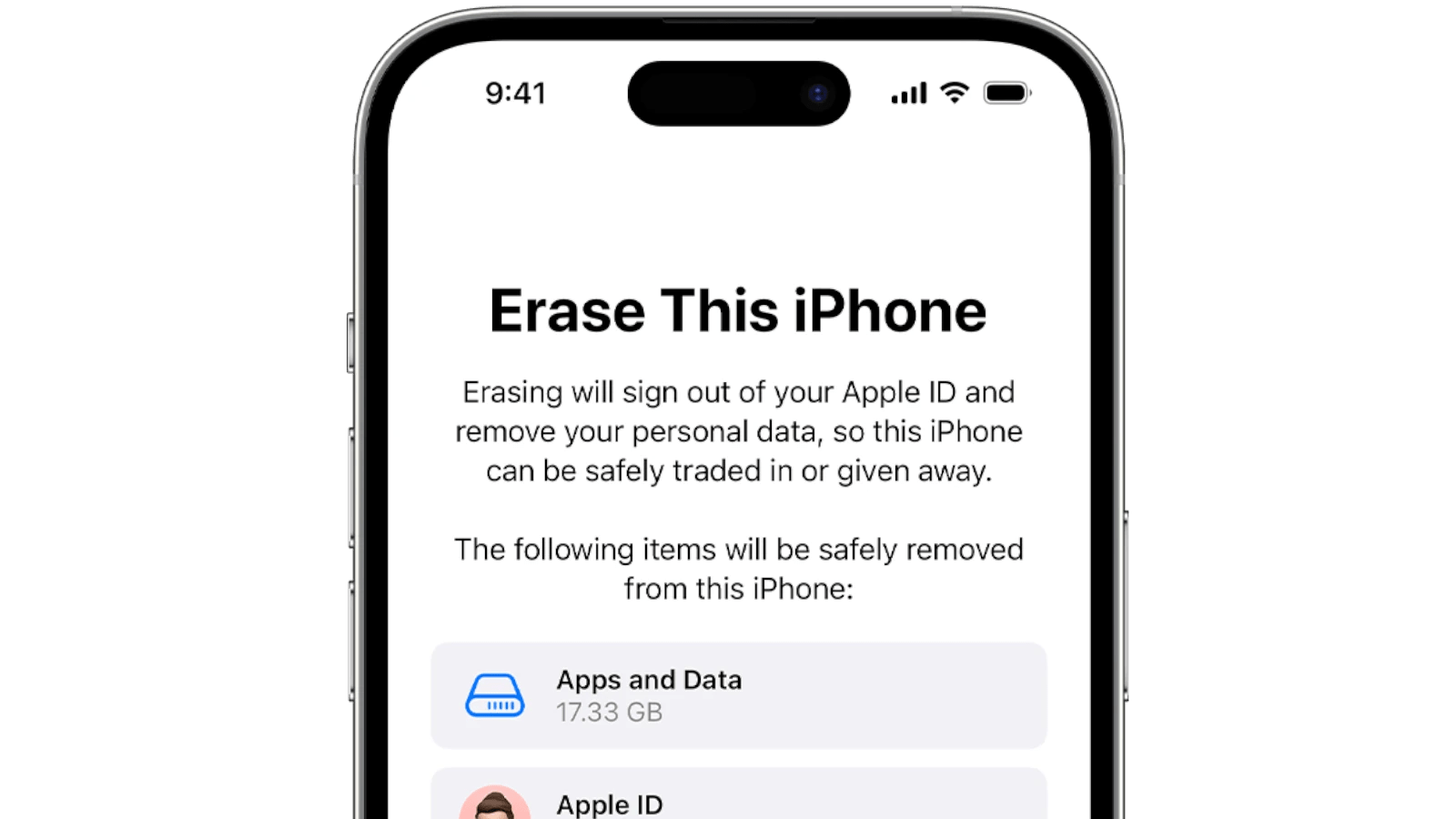
Erase All Content and Settings
Do a factory reset. This will wipe your phone clean of your data and restore it to its original factory settings. Think of it as a fresh start for your iPhone’s new owner.
Remove SIM Card and Accessories
Take out your SIM card and any accessories, like cases or screen protectors. Keep these for yourself or sell them separately.
Checklist for a Smooth Trade-In:
Following these steps will ensure a smooth and worry-free trade-in process.
Key Takeaways
Preparing Your iPhone for Trade-In
Before trading in your iPhone, it’s essential to back up your data, sign out of your Apple ID and iCloud, and erase all personal information. This ensures your privacy is protected and makes the transition to a new device smoother.
To keep your photos, contacts, messages, and more, back up your iPhone. You can use iCloud or your computer for this task. On your iPhone, go toSettings, tap your name, theniCloud, andiCloud Backup. TapBack Up Now. If you prefer using a computer, connect your iPhone, openiTunesorFinder, and select your device to start the backup.
Sign Out of Apple ID and iCloud
Before you hand over your iPhone, sign out of your Apple ID to remove your personal access. On your iPhone, go toSettings, tap your name, scroll down, and tapSign Out. Enter your Apple ID password if asked and follow the prompts. Disable two-factor authentication to avoid future login issues for the new owner.
Erase your iPhone to delete all apps and data. Go toSettings, tapGeneral, thenReset, and chooseErase All Content and Settings. This will remove personal information and reset the device. After this step, your iPhone will be ready for trade-in. Remember, perform this action only after you’ve backed up your data and signed out of your Apple ID and iCloud.
Final Steps Before Trading In Your iPhone
Before you trade in your iPhone, a few crucial steps ensure your privacy and the device is ready for its new owner.
Remove SIM or eSIM
Remove the SIM card to protect your cellular data. If your iPhone has an eSIM, contact your carrier to transfer your cellular plan or deactivate the eSIM.
Unpair Apple Watch and Deregister Devices
If you have an Apple Watch, unpair it from your iPhone. This action removes the Watch from your account and erases your data. Also, deregister iMessage and other services linked to your Apple ID to prevent messages from being sent to your old iPhone after you trade it in.
Clean and Accessories
Wipe your iPhone with a soft, lint-free cloth. Ensure that the device is clean and presentable. Remove any cases, covers, or accessories before trading it in. These items are yours to keep or sell separately and do not go with the traded device.
